- Complete Steam Deck guide
NonSteamLaunchers Download, Setup, Errors & Complete Guide
NonSteamLaunchers helps Steam Deck users install and use non-Steam game launchers such as Epic Games, GOG, Ubisoft Connect, EA App, Battle.net, and more. This guide explains download information, setup steps, common errors, safety tips, and easy fixes in simple words.
- Steam Deck friendly
- Free & community-made
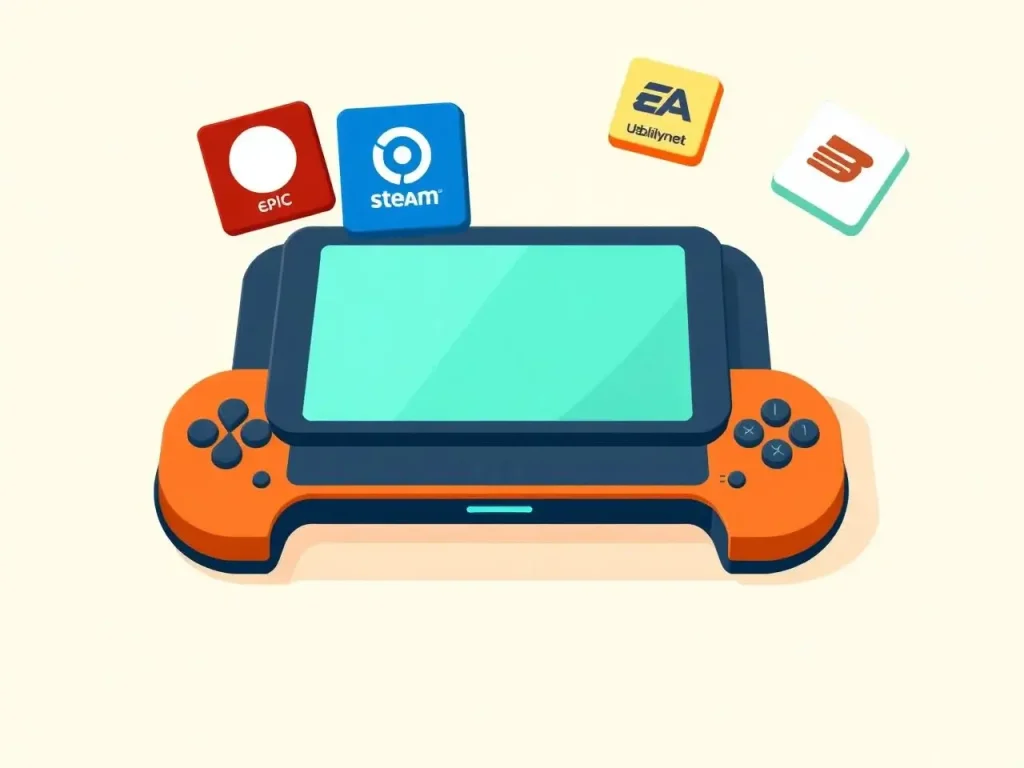
What Is NonSteamLaunchers?
NonSteamLaunchers is a helpful tool for Steam Deck users. It lets you install game launchers that are not part of Steam. For example, if you have games on Epic Games, GOG, Ubisoft Connect, EA App, Battle.net, Amazon Games, or Itch.io, then NonSteamLaunchers can help you add these launchers to your Steam Library. In simple words, NonSteamLaunchers helps Steam Deck users play non-Steam games more easily.
Why Do People Use It?
Steam Deck works best with Steam games, but many users have games on other platforms. Installing those launchers manually is difficult NonSteamLaunchers makes it easy.
- Install non-Steam launchers
- Add launcher shortcuts to Steam
- Open launchers from Gaming Mode
- Manage games from different stores
- Save time during setup
Is It Official & Free?
No, it’s not official Valve software it’s a community-made tool. It is generally free to use, but it does not give paid games for free. You still need legal accounts and games.
- Community-made, not by Valve
- Free to download & use
- Requires legal game accounts
- Use only the official source
Key Features of NonSteamLaunchers
NonSteamLaunchers gives players a practical way to install, organize, and access popular non-Steam gaming services from a more convenient setup. Explore the core features that make launcher management easier for PC and Steam Deck users.
Wide Launcher Support
NonSteamLaunchers helps users access and manage popular third-party game launchers from one convenient setup, reducing the need to configure each launcher separately.
Simple Installation
The streamlined setup process makes NonSteamLaunchers easier to install and use, even for players who have limited experience with manual launcher configuration.
Steam Deck Friendly
NonSteamLaunchers is designed with Steam Deck users in mind, helping them add compatible non-Steam gaming services to their library and launch them through Gaming Mode.
Centralized Game Access
Keep multiple gaming platforms accessible from one organized location. This makes it easier to switch between launchers and manage a broader PC game library.
Flexible Launcher Management
Users can choose the launchers they need instead of installing unnecessary software, creating a cleaner and more personalized gaming setup.
Convenient Updates
NonSteamLaunchers simplifies ongoing launcher management by making it easier to maintain supported services and keep the overall installation organized.
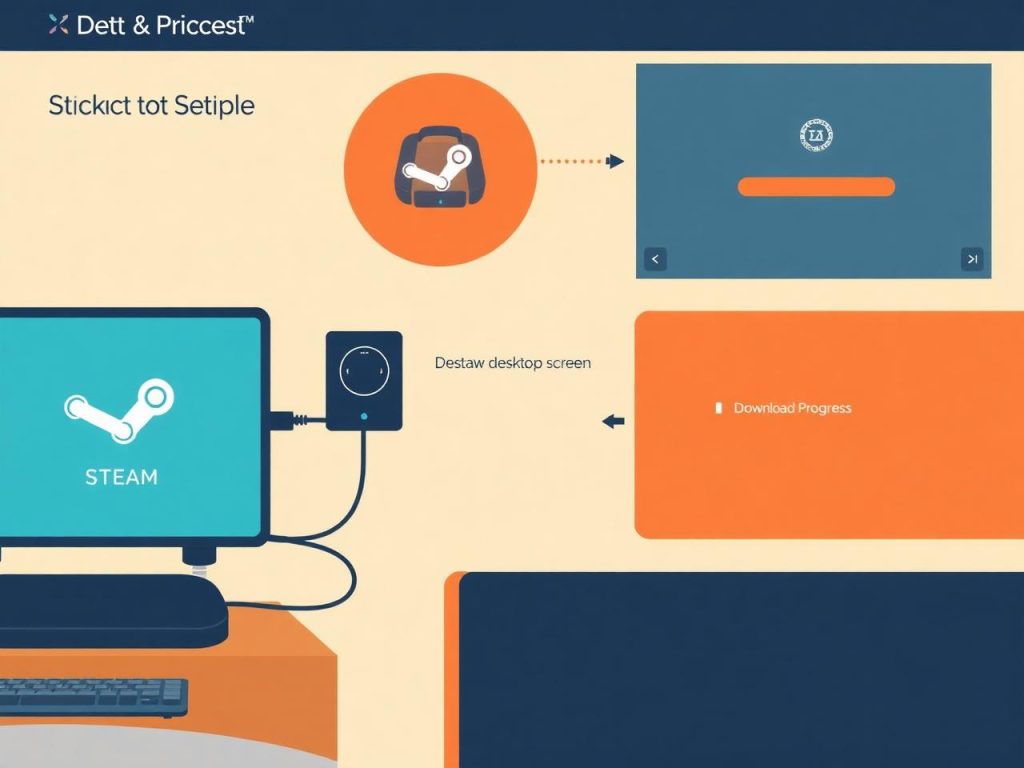
Download Information & Safe Tips
To download NonSteamLaunchers safely, always use the official source usually the official NonSteamLaunchers page. Avoid random websites, fake download pages, or unknown file-sharing links.
- Safe Download Tips
- Community-made, not by Valve
- Free to download & use
- Requires legal game accounts
- Use only the official source
Basic Requirements
Supported Launchers
Epic Games Launcher
Epic Games Store games
GOG Galaxy
GOG games
Ubisoft Connect
Ubisoft games
EA App
EA games
Battle.net
Blizzard games
Amazon Games
Amazon & Prime Gaming
Itch.io
Indie games
Rockstar Launcher
Rockstar games
Minecraft Launcher
Minecraft access
The supported list can change always check the latest version.
How to Install on Steam Deck
Follow these some simple steps to get NonSteamLaunchers running on your Steam Deck.
Charge Your Steam Deck
Make sure your Steam Deck has enough battery or plug it into a charger to prevent the setup from stopping mid-way.
Switch to Desktop Mode
Press the Steam button → Power → Switch to Desktop. Desktop Mode gives you access to the browser and installer.
Open a Web Browser
Launch Firefox, Chrome, or any available browser. Search for the official NonSteamLaunchers GitHub page.
Download the Latest Version
On the official project page, find the latest release. Download the correct file for Steam Deck. Avoid unknown websites.
Open the Downloaded File
Go to your Downloads folder and open the NonSteamLaunchers file. You may need to give it permission to run.
Allow Permission If Needed
If the file does not run, right-click it, open properties, and allow it as executable. This is normal on Linux.
Choose Launchers
Select only the launchers you need (Epic, GOG, Ubisoft, EA, Battle.net, Amazon, Itch.io). This saves storage.
Start Installation
Begin the installation. The tool downloads and sets up each launcher. Don't close the installer during this process.
Restart Steam
After installation finishes, restart Steam so the new launcher shortcuts appear in your library.
Return to Gaming Mode
Switch back to Gaming Mode and check your Steam Library for the new non-Steam launcher shortcuts.
- How to Use After Setup
Open Steam Library, find the launcher you installed, and open it. Log in with your official account. For example, open Epic Games Launcher from Steam, log in to your Epic account, install your game, then play it.
- Important Login Note
Always log in only through the real launcher. Never enter your account details into unknown popups or fake pages.
Common Errors & Fixes
Running into issues? Here are the some most common NonSteamLaunchers errors with simple, step-by-step fixes from permission problems to launcher crashes.
File Does Not Open
Reason: The file may not have permission to run.
Fix: Check file permissions and allow it to run as executable. Make sure you downloaded the correct file.
Installation Stuck
Reason: Slow internet, server issues, or download problems.
Fix: Check your internet, restart the installer, and ensure your Steam Deck has enough free space.
Launcher Not Showing in Library
Reason: Steam may not refresh shortcuts immediately.
Fix: Restart Steam. If that fails, restart your Steam Deck and check under non-Steam games.
Launcher Opens but Game Won't Start
Reason: Compatibility, anti-cheat, or Proton issues.
Fix: Try a different Proton version. Check if the game supports Steam Deck or Linux.
Login Page Not Loading
Reason: Browser-based login window may not load.
Fix: Restart the launcher, check internet, and verify your date and time settings.
Not Enough Storage
Reason: Launchers and games take a lot of space.
Fix: Free up storage, delete unused games, or move data to microSD if supported.
Shortcut Opens Wrong Launcher
Reason: Broken or changed shortcut path.
Fix: Remove the broken shortcut from Steam and add it again. Re-run NonSteamLaunchers if needed.
Epic Games Launcher Not Working
Reason: Epic updates can break compatibility.
Fix: Restart Steam Deck, check Proton settings, or reinstall the launcher.
Battle Not Installing
Reason: Battle installer changes can cause issues.
Fix: Try again later, update NonSteamLaunchers, ensure stable internet.
EA App Crashes
Reason: EA App can be unstable on Steam Deck.
Fix: Restart the app, try another Proton version, or reinstall via the tool.
Best Settings & Tips
Quick tips to get the smoothest experience.
Use Legal Accounts
Only use real accounts and legally owned games.
Keep Steam Deck Updated
System updates improve compatibility and performance.
Install Only Needed Launchers
Don't install all launchers keeps your system clean.
Restart After Setup
Restarting Steam or Steam Deck fixes many shortcut problems.
Restart After Setup
Restarting Steam or Steam Deck fixes many shortcut problems.
Manage Storage
Use microSD cards to expand space for launchers and games.
Pros and Cons
- Pros
- Makes non-Steam launcher setup easier.
- Good for Steam Deck users.
- Adds launchers to Steam Library.
- Saves time.
- Supports many launchers.
- Pros
- Not official from Valve.
- May need troubleshooting.
- Launcher updates can break things.
- Beginners must follow steps carefully.
- Safety Warning
Important: NonSteamLaunchers should be downloaded only from the official source. This website provides information and guidance only. We do not recommend downloading software from unknown or unsafe websites.
- Disclaimer
This page is for informational and educational purposes only. NonSteamLaunchers is a community-made tool and is not officially owned by Steam, Valve, Epic Games, GOG, Ubisoft, EA, Battle.net, or any other game company. Users should download software only from official sources and use it only with games they legally own.
-
FAQ's
Quick answers to the most common questions about NonSteamLaunchers.

What is Netshoot?
Netshoot is a network troubleshooting toolbox for Docker and Kubernetes. It helps users check DNS, ports, routes, container connections, and service problems.
What is Netshoot used for?
Netshoot is used to find and understand network problems inside Docker containers and Kubernetes clusters. It helps debug connection issues, DNS errors, port problems, and service communication.
Is Netshoot a normal software download?
No, Netshoot is not downloaded like a normal Windows or macOS app. It is usually pulled as a Docker image and run as a temporary debugging container.
Do I need Docker to use Netshoot?
Yes, Docker is required because Netshoot runs inside a Docker container.
What does the --rm option mean?
The –rm option means Docker will automatically remove the Netshoot container after you close it. This keeps your system clean.
Can beginners use Netshoot?
Yes, beginners can use Netshoot. Start with simple commands like ping, curl, dig, and nslookup.
What tools are included in Netshoot?
Netshoot includes many network tools such as ping, curl, dig, nslookup, tcpdump, traceroute, ip, netstat, and other debugging commands.
How does Netshoot help with Docker network issues?
Netshoot helps test Docker container networks, DNS, service names, ports, routes, and container-to-container communication.
Can Netshoot debug Kubernetes problems?
Yes, Netshoot can run inside Kubernetes as a temporary pod. It helps test pod connections, cluster DNS, services, ports, and network policies.
What are the best Netshoot commands for beginners?
The best beginner commands are ping, curl, dig, nslookup, traceroute, ip addr, ip route, and nc.
Can Netshoot test DNS problems?
Yes, Netshoot can test DNS problems using commands like dig and nslookup.
When should I use Netshoot?
Use Netshoot when a Docker container cannot connect to another container, Kubernetes DNS is not working, a service port is not responding, or your app container does not include network tools.
Is Netshoot safe to use?
Netshoot is safe when used only on systems, containers, clusters, and networks that you own or have permission to test.
Should I use Netshoot on public websites?
No, you should not use Netshoot to scan, test, or capture traffic from public websites or networks unless you have clear permission.
Does Netshoot fix network problems automatically?
No, Netshoot does not fix problems automatically. It helps you find the issue, and then you need to fix the real cause.
Why is Netshoot useful for DevOps learners?
Netshoot is useful for DevOps learners because it gives practical tools to understand Docker networking, Kubernetes troubleshooting, DNS checks, port testing, and real-world debugging.
Why do small Docker images need Netshoot?
Small Docker images often remove extra tools to stay lightweight. Netshoot helps because it gives you those missing troubleshooting tools when needed.
How can Netshoot check if a service name is wrong?
Netshoot can use nslookup or dig to test if the service name resolves to the correct IP address.
Can Netshoot test database connection problems?
Yes. You can use Netshoot to check if your app can reach a database hostname and port inside Docker or Kubernetes.
Does Netshoot work with private Docker networks?
Yes. Netshoot can join the same Docker network and test communication between containers inside that private network.